



Description
BlogEditorAI
BlogEditorAI is a WordPress plugin that helps you transform site content into a clear editorial plan, with drafts ready to refine.
This only works in the backend (wp-admin): does not add anything to the frontend of the site.
Recommended requirements
- Configured AI provider (API key + template).
- Recommended text template:
GPT 5.2(model field value:gpt-5.2). - Recommended image template:
1.5(use the 1.5 identifier provided by your provider in the image field). - Google Search Console connected (recommended for more reliable priorities).
- Recommended SERP Provider:
SerpApi(currently the only one officially tested on this plugin).
1) What it is and why it is useful
BlogEditorAI was created to solve a simple problem: going from "I don't know what to write" to "I have a concrete plan and a ready draft" in a short time.
In practice:
- reads your existing articles;
- identifies themes, opportunities and possible keywords;
- offers you priorities;
- helps you create WordPress drafts (in Draft status, never automatically published).
Result: less time wasted deciding what to do, more editorial continuity.
2) What the plugin does (in a practical way)
The main functions are these:
- Existing content analysis
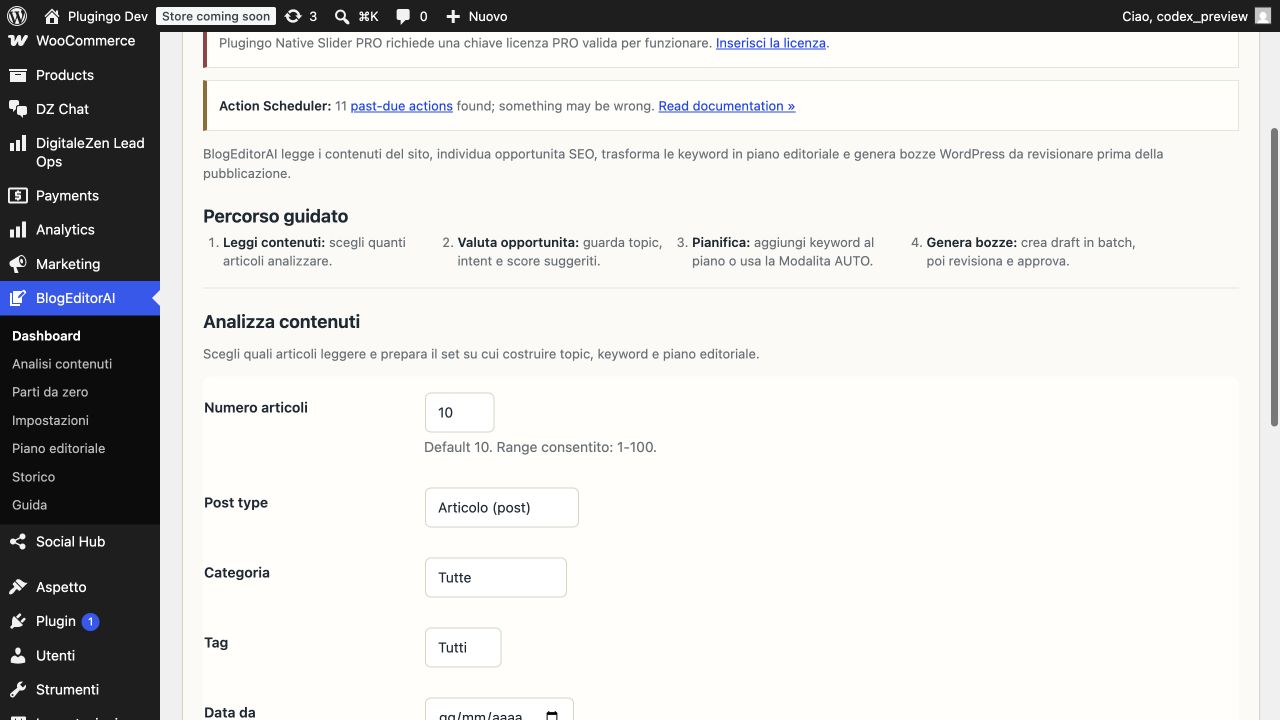
- Reads the latest N articles (with filters).
- Highlights recurring themes and under-covered areas.
- Keyword suggestion and priority
- It suggests useful keywords.
- Show motivations (opportunities, overlap risk, available signals).
- Editorial plan
- Add keywords to the plan.
- Set status, priority, date and manager.
- Draft generation
- From a plan item you can create a draft in WordPress.
- Includes article structure and basic SEO metadata.
- Operations history
- Track jobs, statuses and any errors to understand what happened.
3) Who is it thought of?
- Editor and content manager: speed up topic selection and production.
- SEO specialist: have an orderly basis for prioritization.
- Owner/PM: see content roadmap and progress.
You don't need to be a developer to use it in the main functions.
4) How it works (recommended flow)
- Go in
BlogEditorAI > Settings
- Set minimum credentials (AI provider API).
- Go in
BlogEditorAI > Dashboard
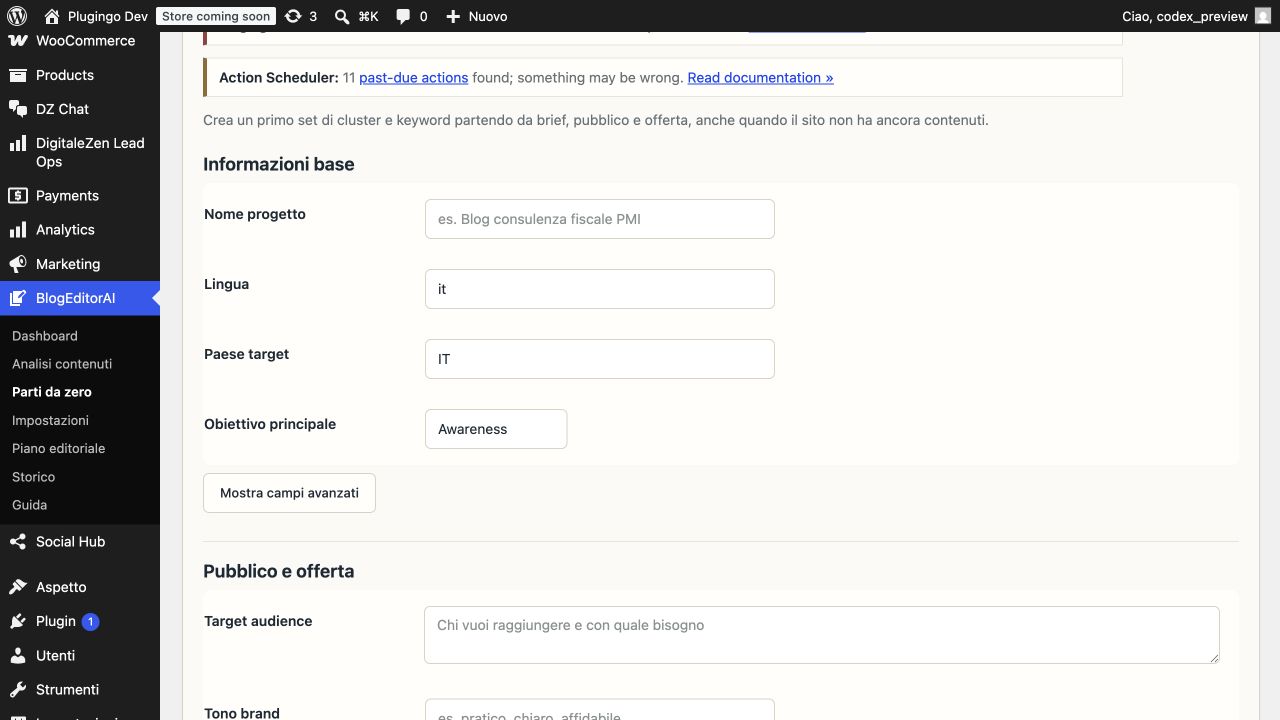
- Choose whether to start from scratch or read existing content.
- Start reading/analysis.
- Evaluate the suggestions
- Check suggested clusters, keywords and priorities.
- Add only what makes sense for your business to the plan.
- Open
BlogEditorAI > Editorial Plan
- Organize dates, owners, priorities and notes.
- Create draft
- Click “Draft” on a plan item.
- Always review the text before publishing.
- Monitor in
Jobs and History
- If a job fails, check status and try again after fix.
5) Expected results
With proper use, you can typically expect:
- a more orderly editorial plan;
- faster times to create initial drafts;
- lower risk of writing repetitive content;
- better clarity on “what to do first”.
Important: the plugin helps decision making, it does not guarantee automatic SEO results.
6) Overview of plugin sections
Dashboards
It is used to start ingest/analysis and see the main suggestions.
When to use it:
- at the beginning of the weekly work;
- when you want to find new ideas;
- when you want to understand whether to update existing articles.
Settings
It is used to configure AI providers, editorial style and additional options.
When to use it:
- before first use;
- when you change providers, templates or style policies.
Search Console
It is used to connect Google Search Console and use real data (impressions, CTR, position).
When to use it:
- after the basic configuration;
- whenever you want to sync updated data.
Editorial Plan
It is used to transform suggestions into an operational plan (who does what and when).
When to use it:
- after the analysis phase;
- to manage editorial work continuously.
Jobs and History
It is used to see the status of operations (queueed, in progress, completed, failed).
When to use it:
- if something doesn't add up;
- for internal audit and process control.
7) APIs and integrations: what they are, why they are needed, where to get them, how to set them up
7.1 AI Provider API (required)
Why it is needed:
- and the engine that analyzes content and generates drafts.
Where to get it:
- by the AI provider you choose (common example: OpenAI, if you use compatible models like
gpt-5.2). - you can generally find it in the provider's account panel, API Keys section.
How to set it:
- Go in
BlogEditorAI > Settings. - Enter
API key provider modello. - Set
Modello AI(e.g.gpt-5.2). - Save and use the test connection button.
Useful notes:
- if the key is not valid, analyzes and drafts do not start;
- recommended text template:
GPT 5.2(in the technical field:gpt-5.2); - keep the key safely, do not share it.
7.2 Google Search Console API (recommended)
Why it is needed:
- adds real data from your site to decide better priorities.
Where to get it:
- Create a project in Google Cloud Console.
- Enable the Search Console API.
- Create OAuth credentials (Client ID and Client Secret).
- Include the redirect URI shown on the page
BlogEditorAI > Search Console.
How to set it:
- Open
BlogEditorAI > Search Console. - Enter
Client ID,Client Secret,Property URL. - Save.
- Click
Connetti Google Search Console. - Click
Sync 28 giorni.
Practical result:
- keyword suggestions become more reliable thanks to real site signals.
7.3 SERP API Provider (optional)
Recommended provider:
SerpApi(and the only provider officially tested in this version of the plugin).
Why it is needed:
- enriches the keyword evaluation with external data (e.g. volume, difficulty, SERP features).
Where to get it:
- from SerpApi (recommended and only tested provider).
- in the provider account panel, API key section.
How to set it:
- Go in
BlogEditorAI > Settings. - In the section
Keyword Intelligence / SERP, enable the provider. - Enter endpoint and API key.
- Set local/device according to your market.
If you don't configure it:
- the plugin continues to work with internal estimates and GSC data (if present).
7.4 Rank Math (integration without API key)
Why it is needed:
- allows you to write SEO metadata directly where Rank Math uses it.
How it works:
- if Rank Math is installed/active, BlogEditorAI writes the meta in the compatible format;
- if not there, use an internal fallback without blocking the flow.
8) Recommended initial configuration (quick setup)
To get off to a good start:
- Configure AI provider API in
Settingsand set the recommended text templateGPT 5.2(field:gpt-5.2). - (Recommended) Configure Search Console.
- (Optional) enable featured images and set the recommended image template
1.5(with equivalent provider ID). - Leave the autopilot deactivated until you have validated the manual flow.
- Do an initial analysis on a small set (e.g. 10 articles).
- Add 5-10 keywords to the plan and generate 1-2 test drafts.
9) Good usage practices
- Always proofread before publishing.
- Avoid accepting all keywords: select those consistent with real objectives.
- Use notes and owners in the plan to avoid bottlenecks.
- Sync GSC periodically to keep priorities updated.
- Check
Jobs and Historywhen you notice abnormal behavior.
10) What the plugin doesn't do (by choice)
- It does not automatically publish content.
- It does not replace human editorial review.
- It does not guarantee SEO rankings.
Its role is to support decisions and operations, not replace strategy.
11) Solving common problems
Problem: API test fails
- Check API key and model entered.
- Check timeout in
Settings. - Check any provider limits.
Problem: Search Console won't connect
- Check Client ID/Secret.
- Check that the redirect URI is entered correctly in the Google project.
- Check that the property is correct and accessible from your account.
Problem: Draft is not generated
- Check
Jobs and History. - Verify that the API configuration is active.
- Please try again with fewer concurrent requests.
12) Quick glossary
- Ingest: reading existing content.
- Cluster: group of articles/keywords similar by topic.
- Keyword focus: priority keyword on which to build content.
- Cannibalization: multiple pages on the site competing on the same search intent.
- Draft: Unpublished draft.
If you are starting now: first configure AI provider API + Search Console, then do an initial analysis on 10 articles and create the first editorial mini-plan.
Before installing
- Check your WordPress version and any WooCommerce requirements listed in the documentation.
- Try installing on staging when the site handles orders or active users.
- For assistance and updates use the official Plugingo channels.
More value with Plugingo PASS
FREE and PRO Plugingo plugins are included in Plugingo PASS; subscribers also receive a 20% discount on PREMIUM plugins.





Reviews
There are no reviews yet.