
 FREE
FREESimple UTM Tracker FREE plugin
Track UTM, landing pages and referrers in WooCommerce orders and forms.
0,00 €Download for free
 plugingo.it
 English
If you sell plugins, templates, courses or digital products with WooCommerce, knowing where orders and leads come from is essential. This guide explains how to save UTM, gclid, referrer and landing page without complicating checkout.
Google Ads, newsletters, social media, communities and direct links can bring similar traffic but different value. Saving UTM parameters in the WooCommerce order helps you understand which campaigns generate real purchases and which only produce visits.
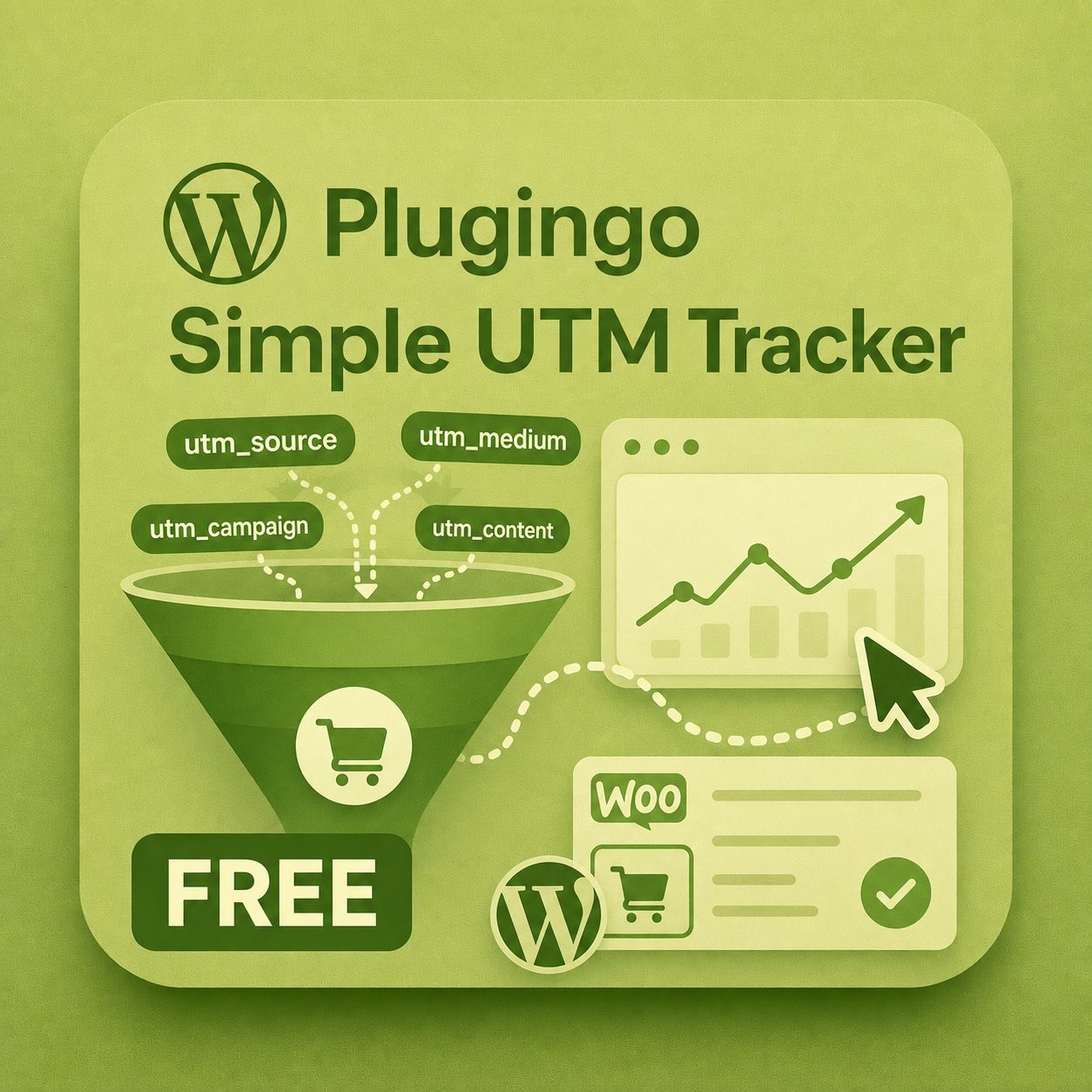
The plugin records the main parameters, links them to WooCommerce orders and provides the shortcode for hidden fields in forms. It is designed for those who want to start measuring without installing complex marketing suites.
FREETrack UTM, landing pages and referrers in WooCommerce orders and forms.
Yes. Keep UTM parameters out of “Drop Query String” and exclude the attribution cookies from cache. The product documentation includes the exact configuration.
Contact Form 7 is supported directly. Gravity Forms supports the PGO hidden-field shortcode through an HTML field. Read the tested setup →
No. Activating one edition automatically deactivates the other, preventing duplicate cookies or attribution data.